Before you start
You’ll need a PC running Windows 10 or Windows 11.

The Afternoon desktop app records your meetings straight from your PC, so no bot joins your calls. This guide covers setup, recording a meeting, and what to do afterwards.
You’ll need a PC running Windows 10 or Windows 11.

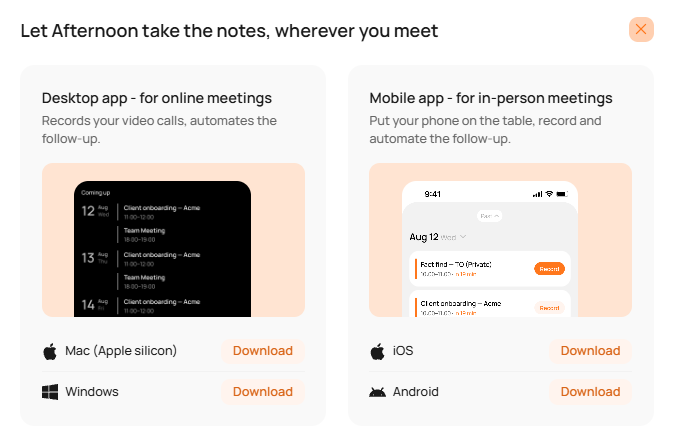
Once you’ve downloaded the app, Get apps moves to the menu under your avatar in the top-right.
When the app opens, click Sign in to start and sign in with your Afternoon account. If you’re already signed in to Afternoon in your browser, you’ll be asked to confirm your password, or to choose to sign in with Google or Microsoft.
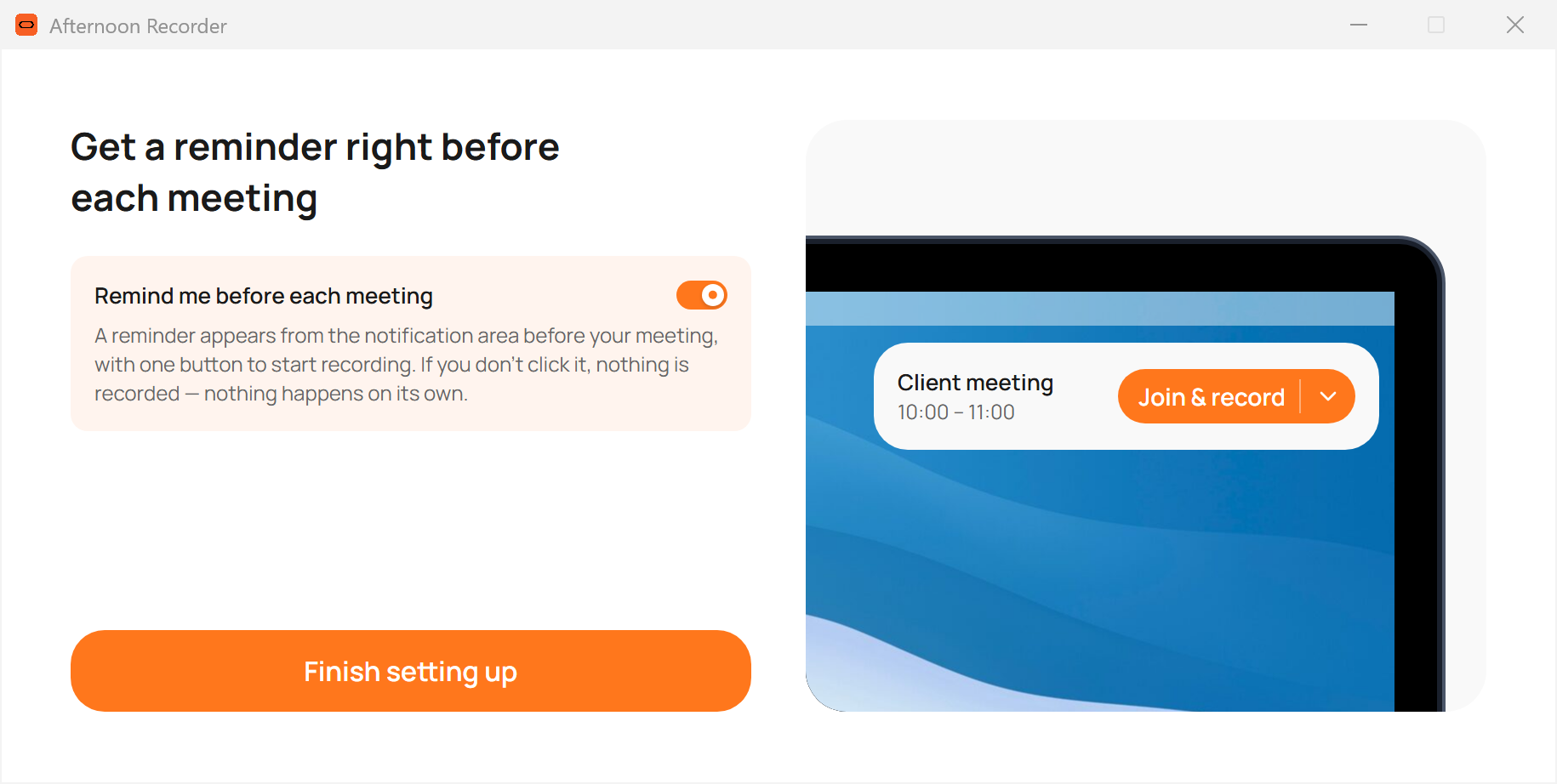
Remind me before each meeting is switched on by default. Before each meeting, a reminder appears from the notification area with one button to start recording. If you don’t click it, nothing is recorded. You can change this later in settings (see 4.4).
Click Finish setting up.
Afternoon runs from the bottom-right of your taskbar, near the clock. Windows hides new icons at first, so move it where you can see it:
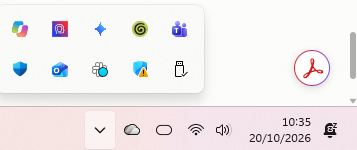
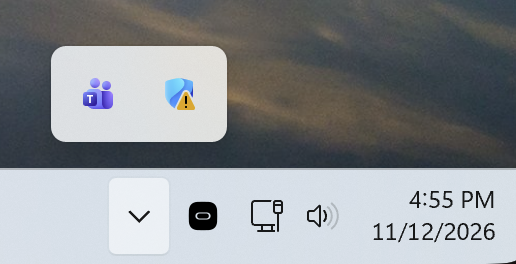
Afternoon starts automatically when you log in to your PC, so you only need to do this once.
No bot joins your calls, so your clients won’t see anything extra.
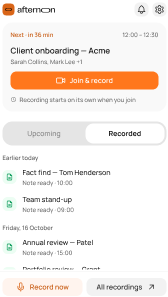
Click the Afternoon icon on your taskbar to see your most important meeting at the top, with your upcoming meetings below it. Click Meeting prep next to any meeting to open it in Afternoon, so you can prepare for the meeting by generating an agenda or even by asking Siesta questions.
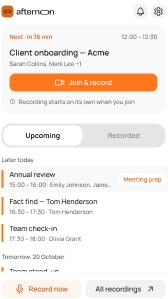
Click All recordings at the bottom of the menu to open your recordings in Afternoon.
| Meeting type | What happens |
|---|---|
| Scheduled meetings | Just before the meeting starts, a reminder appears showing the meeting name and time. Click Join & record to join the call and start recording. |
| Calls without a calendar invite | If a client calls you directly, Afternoon notices you’ve joined a call and offers to record it. |
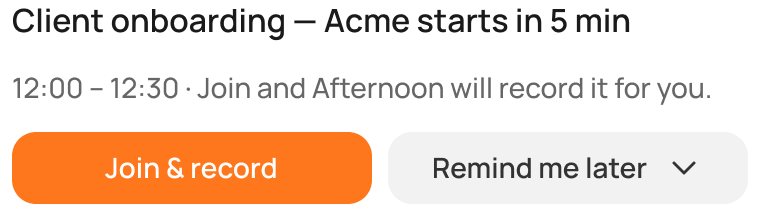
After you click Join & record, Afternoon waits until you’ve joined the call before it starts recording. Click Start now to start straight away, or Cancel to stop.
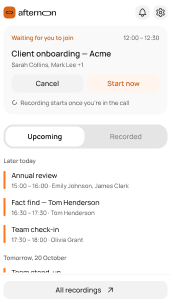
You also have these options:
| Option | What it does |
|---|---|
| Remind me later | Not ready yet? Click Remind me later and choose when to be reminded. |
| Stop and join | If you’re already recording when another meeting starts, click Stop and join to end the current recording and join the next meeting. |
| Do not disturb | Click the bell icon at the top of the Afternoon menu to turn notifications off. |
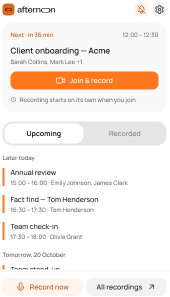
If automatic recording starts on a meeting that isn’t in your calendar, Afternoon lets you know.
Click the Afternoon icon on your taskbar, then click Record now in the bottom-left corner. Record now works for any call, even one that isn’t in your calendar.
While Afternoon is recording, the Afternoon menu shows Siesta is taking notes, with a timer and the recording controls. A recording bubble also appears on your screen, showing how long you’ve been recording, with Pause and Stop buttons. You can drag the bubble anywhere, and it snaps to the side of your screen to stay out of the way. To hide it, turn off Show the recording bubble in settings.
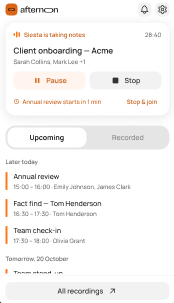
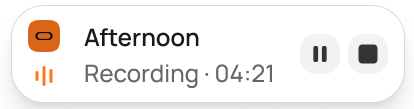
If another meeting is about to start, the menu also offers Stop & join. If your internet connection drops, Afternoon keeps recording for up to 2 minutes. If you’re still offline after that, the recording ends. Anything recorded before then is already saved, as your recording is sent to Afternoon throughout the call.
| Control | What it does |
|---|---|
| Pause | Pauses the recording until you’re ready to carry on. |
| Stop | Ends the recording and sends it to Afternoon. Afternoon waits ten seconds before sending it: click Send now to send it straight away, or Resume to carry on recording. |
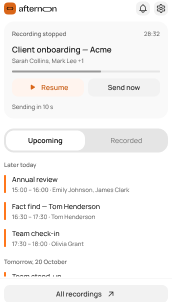
How a recording ends depends on how it started:
| How it started | How it ends |
|---|---|
| Detected meetings | Stop automatically when the meeting ends. You can also stop them yourself at any time. |
| Record now | Recordings keep going until you stop them, so remember to click Stop when the meeting finishes. |
On Windows, fewer meeting apps are detected automatically (see Supported meeting apps below), so you may use Record now more often.
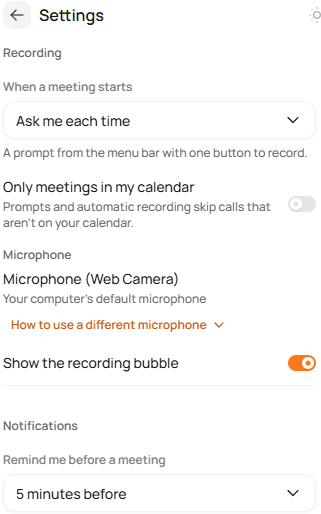
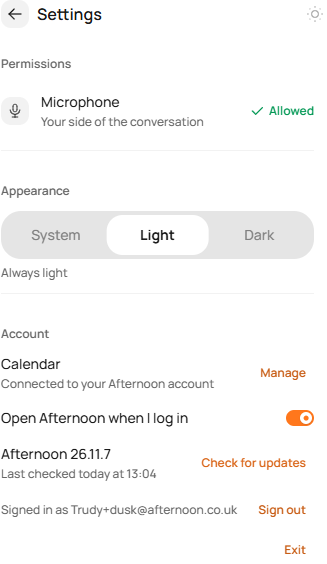
Click the Afternoon icon on your taskbar, then click the settings cog in the top-right corner. From there you can change:
| Setting | What it does |
|---|---|
| When a meeting starts | Choose whether Afternoon records meetings automatically, asks you each time (Ask me each time, the default), or leaves you to start every recording yourself. |
| Only meetings in my calendar | Prompts and automatic recording skip calls that aren’t in your calendar. |
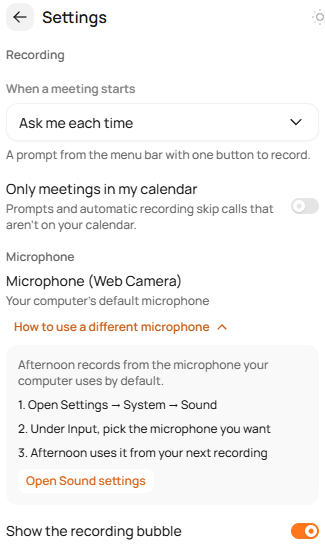
| Microphone | Shows the microphone Afternoon is using. Click How to use a different microphone to see how to change it. |
| Show the recording bubble | Shows or hides the recording bubble while you record. |
| Remind me before a meeting | Choose how early the reminder appears, for example 5 minutes before. |
| Permissions | Shows whether Afternoon has the permissions it needs, such as access to your microphone. A badge appears if one is missing. |
| Appearance | Choose System, Light or Dark. |
| Calendar | Click Manage to manage your calendar. If no calendar is connected, Afternoon shows this at the top of the menu. |
| Open Afternoon when I log in | Starts Afternoon automatically when you log in to your PC. |
| Check for updates | Shows your app version and when it last checked. Click Check for updates to get the latest version. |
| Sign out and Exit | Sign out of your Afternoon account, or close the app. |
Afternoon detects meetings automatically in these apps and browsers:
| Meeting app | Detected in |
|---|---|
| Zoom | Zoom desktop app |
| Microsoft Teams | Teams desktop app |
| Google Meet | Chrome, Edge |
Meetings anywhere else, such as Zoom or Teams in a browser, won’t be detected. Use Record now instead.
Your recording is sent to Afternoon and a transcript is created automatically. Open the meeting in Afternoon to:
To see your recordings, click the Afternoon icon and open the Recorded tab. It lists everything you’ve recorded and shows progress while a recording is being sent. Each recording shows No note yet until a meeting note has been generated, then Note ready. When a new note is ready, an orange dot appears on the Recorded tab. Click a recording to open the meeting in Afternoon so you can take actions following the meeting, such as assigning clients or actions to a team member.
Click the ^ arrow on your taskbar. If the Afternoon icon is there, drag it onto the taskbar (see 3.3 above).
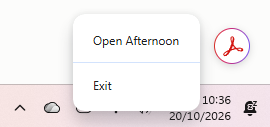
Right-click the Afternoon icon on your taskbar and choose Exit. Then open Afternoon again from the Start menu.
Afternoon uses your PC’s default microphone. To change it, open Settings > System > Sound and choose your microphone under Input.
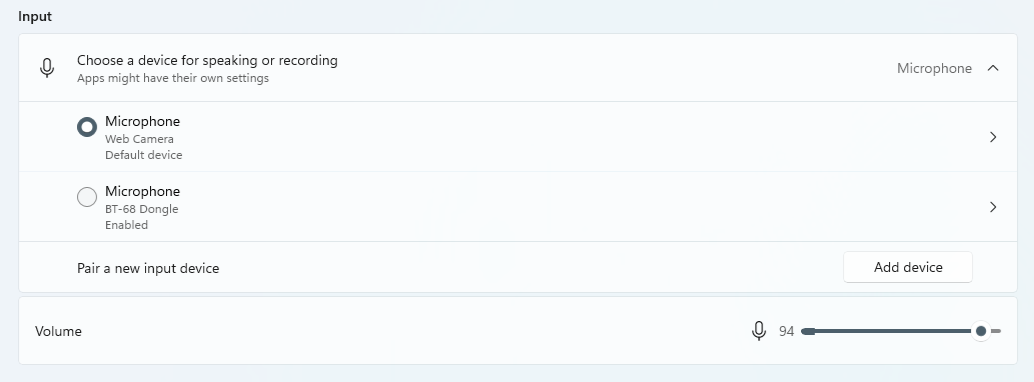
Also check that microphone access is switched on for desktop apps:
| Windows version | Where to check |
|---|---|
| Windows 11 | Settings > Privacy & security > Microphone |
| Windows 10 | Settings > Privacy > Microphone |
In the app’s settings, click How to use a different microphone to see these steps, with a button to open your Sound settings.
If Afternoon can’t hear you, an alert appears above your upcoming meetings: Afternoon can’t hear you. Click Fix to allow microphone access. In the app’s settings, Permissions also shows whether microphone access is allowed.
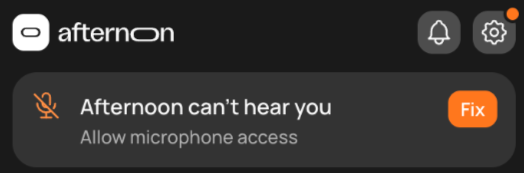
Shown here in dark mode.
Check you’re using a supported app or browser (see Supported meeting apps above). If not, click Record now to start recording yourself.
Actions are created from the meeting note, so generate the meeting note first (see 5).
If an Update button appears at the top of the Afternoon menu, click it to install the latest version. You can also click the settings cog, then click Check for updates.
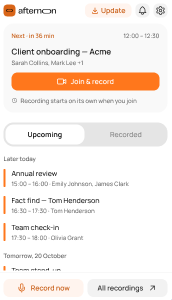
Check your calendar is connected. If it isn’t, Afternoon shows this at the top of the menu, with a button to connect it.
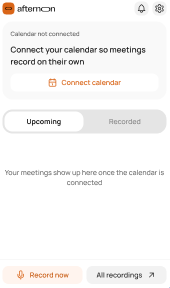
Meetings marked private or confidential in Google or Outlook aren’t brought into Afternoon.

Any questions? Get in touch and our team will help you out.